Smarter Systems. Better Care.
Empowering hospitals with integrated EMR solutions and advanced medical technologies—designed for real hospital workflows.
Learn more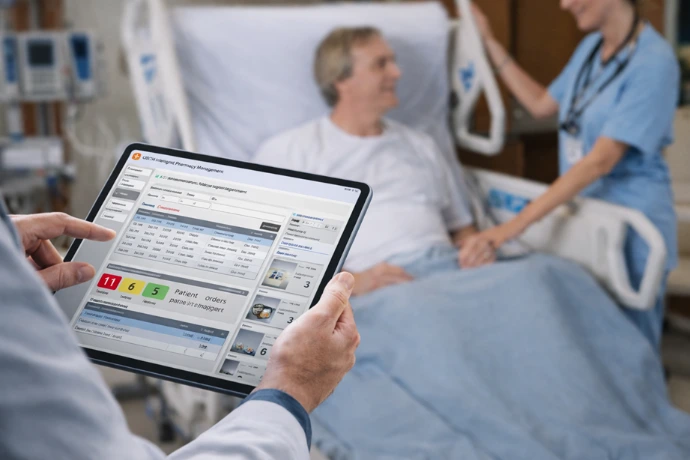
" We provide reliable installation, maintenance, and support for medical equipment—ensuring optimal performance in hospital environments. "

" Our team focuses on building and maintaining reliable systems that support seamless integration and stable performance in daily hospital operations. "

"We ensure that our customers receive consistent and responsive support across all solutions—from EMR to PACS and medical devices."

" Our systems are designed for real hospital environments, integrating EMR, PACS, and AI solutions to deliver stable and efficient workflows. "


Fast & Reliable Technical Support
We provide responsive technical support to ensure your systems and medical equipment operate without interruption.
Through our official LINE channel, urgent issues can be reported and handled promptly by our support team.
For better tracking and faster resolution, we recommend submitting requests through our service portal, where all issues are managed and tracked efficiently.
Proactive Maintenance & Continuous Support
We ensure system reliability through regular preventive maintenance (PM), including 3–4 scheduled visits per year and free software updates.
For unexpected issues, our engineers and developers provide immediate corrective maintenance (CM) to keep your operations running smoothly.

Frequently Asked Questions
Here are some common inquiries about our services.
To help the Support team investigate and resolve the issue as quickly as possible, please gather and provide the following 7 key pieces of information:
- Problem details: Describe the symptoms or issue encountered (for example, unable to save, data not displayed, incorrect amount, etc.).
- Module or menu name: Specify the screen or application where the issue occurred (for example, OPD Finance screen, Pharmacy system).
- Patient identification information (PN): The PN number of the patient related to the issue.
- Problematic item(s) (Order Code): If the issue occurs only with certain items such as Lab, X-ray, or specific medications, please specify the item name or code.
- Steps to reproduce: Briefly summarize what actions were taken before the issue occurred (for example, “Click Receive Payment -> Select Social Security benefit -> System freezes”).
- Screenshot: A screenshot taken when the issue occurs, or an image showing the incorrect or abnormal display.
- Error Code / Serial Number: If there is an error popup message, please provide the Serial Number shown in parentheses, or capture the full error message in a screenshot.
Description: This error means that the program cannot communicate with the main server, so the Serial Number will always display as 0.
Possible causes:
- The LAN cable is disconnected, loose, or the Wi-Fi signal is unstable.
- The client computer is not connected to the hospital network (for example, the VPN was not connected, or the user is outside the hospital network area).
- There is a temporary problem with the network system or the destination server.
Initial troubleshooting steps:
- Check the connection: Make sure the LAN cable is firmly plugged in, or confirm that the Wi-Fi is connected to the correct hospital SSID.
- Check access permissions: If working from outside the hospital, make sure the VPN connection has been established properly.
- Test accessibility: Try opening another application that uses the organization’s network to see whether it works normally.
- Coordinate with IT: If the issue persists after checking the signal connection, please contact the IT department or computer center to verify the server status.
The correction procedure depends on whether a financial document has already been issued.
Case 1: If a receipt or billing document has not yet been issued
The correction can be made directly in the system:
- Outpatient (OPD): Click Cancel Calculation to revert the record status, then review the items and recalculate the charges.
- Inpatient (IPD): Click Clear Calculation to reset the total, then retrieve the data and recalculate it correctly.
Case 2: If a receipt or billing document has already been issued
If the record is locked because documents have already been issued, follow these steps in order:
- Cancel the original documents: First void/cancel the receipt, billing document, or treatment details document that contains the issue.
- Adjust the total: After the original document has been canceled, return to the steps in Case 1 (cancel the calculation and recalculate).
- Issue a new document: Verify that the final total is correct before issuing a new receipt or billing document.
Resolution steps:
Step 1: Re-order the item
- Have the user cancel the problematic Lab order and remove it from the order list.
- Place the Lab order again so that the system sends a new request to the laboratory.
- Inform the Lab staff to click Receive in the system again to verify the connection.
Step 2: Technical system check
- If the item still does not appear in the LIS system after completing Step 1, the hospital IT staff should check and restart the LIS Interface Service (the connector between systems).
- After the service has been restarted, try Step 1 again.
Step 3: Contact the specialists
If Steps 1 and 2 still do not resolve the issue, please collect the relevant information (such as the ordered item and the patient’s PN) and contact our Support team immediately so that the system logs can be checked in depth.
To ensure that the design and revision of the document form can be completed quickly and accurately, please prepare the following information:
-
Sample document layout (Mock-up Layout)
Please attach a sample of the document you want to revise. It may be prepared as a Word, Excel, or PDF file.
If you are modifying an existing form, please clearly mark or write the points to be changed on the original form. Paper size and orientation
- Specify the actual paper size to be used (for example, A4, A5), or provide the width and height of the paper.
- Specify the print orientation (portrait or landscape).
- If pre-printed paper with a letterhead is being used, please also specify the required margins that must be left blank.
Typography (font and size details)
- Specify the font name to be used (for example, TH Sarabun New).
- Specify the font size for each section, such as 16 pt bold for headings and 14 pt regular for body text, so that it matches the organization’s standard.
Branding assets (images and logos)
- Attach the hospital logo or any other images that must appear in the document.
- It is recommended to provide high-resolution files (such as transparent .PNG or .JPG) for clear print quality.
Our Healthcare Partners
Working together with leading hospitals to build smarter and more efficient healthcare systems.